Introduction
Bluetooth is not working on laptop is a common issue many Windows 11 users face. Your wireless mouse stops responding. Your headphones refuse to connect. File sharing fails. It can be frustrating, especially when everything was working fine yesterday.
The good news is that in most cases, the problem is not hardware-related. It is usually a service configuration issue inside Windows. In this complete guide, you will learn the correct way to fix Bluetooth connectivity problems step by step.
This tutorial is simple, safe, and beginner-friendly.
Table of Contents
Why Bluetooth Is Not Working on Laptop
Before applying the fix, understand why Bluetooth fails in Windows 11.
Common causes include:
- Bluetooth Support Service disabled
- Bluetooth User Service stopped
- Windows update conflict
- Corrupted drivers
- Power management settings
According to official Microsoft documentation (DoFollow):
https://support.microsoft.com
Bluetooth relies on background services. If those services stop or are set to manual, devices will not connect.
Quick Checks Before Advanced Fix
Before diving into services settings, do these quick checks:
- Turn Bluetooth off and on
- Restart the laptop
- Check Airplane Mode is disabled
- Remove and re-pair the Bluetooth device
If Bluetooth is not working on laptop even after basic checks, proceed to the main solution.
Bluetooth Is Not Working on Laptop – Services Fix
This method resolves most Bluetooth connection issues.
Step 1: Open Services
- Press Windows + R
- Type services.msc
- Press Enter
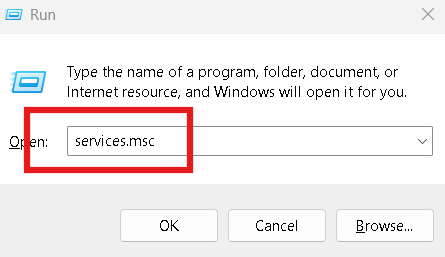
The Services window will open.
Step 2: Find Bluetooth Support Service
Scroll down and locate:
Bluetooth Support Service
Right-click it → Click Properties
Now:
- Change Startup type to Automatic
- Click Apply
- Click Start
- Click OK
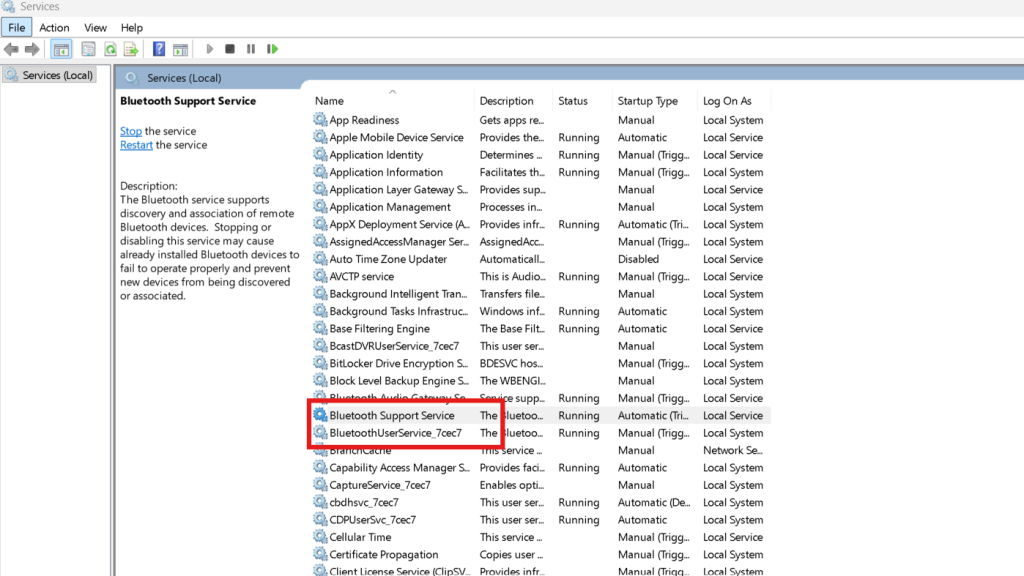
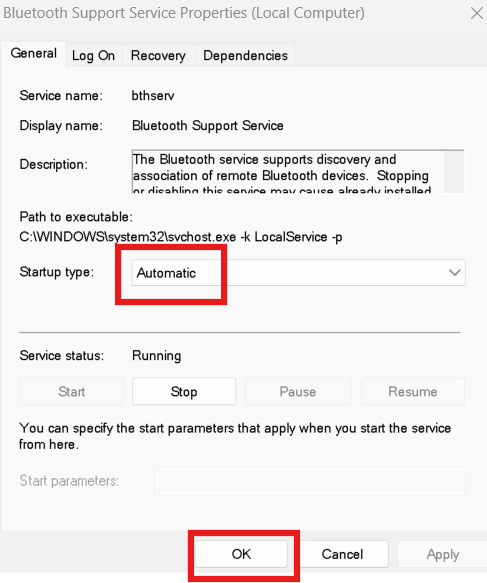
If this service is disabled or set to manual, Bluetooth will not function correctly.
Step 3: Configure Bluetooth User Service
Now find:
Bluetooth User Service
Repeat the same steps:
- Right-click → Properties
- Set Startup type to Automatic
- Click Apply
- Click Start
- Click OK
Step 4: Restart the Laptop
After changing both services, restart your PC.
In most cases, Bluetooth starts working immediately.
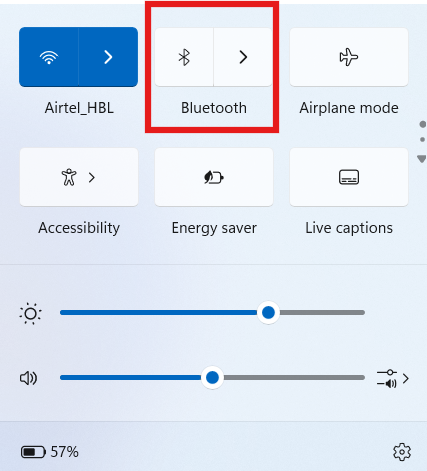
When Bluetooth is not working on laptop, this services method fixes it permanently.
Why This Bluetooth Is Not Working on Laptop Fix Works
Windows 11 depends on background services to manage wireless connections. If Bluetooth Support Service is not running:
- Device pairing fails
- Bluetooth toggle may disappear
- Devices disconnect automatically
Setting the services to Automatic ensures they start every time Windows boots.
Additional Fixes If Bluetooth Is Not Working on Laptop
If the services method does not fully resolve the issue, try the following.
1. Update Bluetooth Drivers
- Press Windows + X
- Open Device Manager
- Expand Bluetooth
- Right-click your adapter
- Select Update driver
You can also visit your laptop manufacturer website for latest drivers.
2. Run Windows Troubleshooter
- Open Settings
- Go to System → Troubleshoot → Other troubleshooters
- Run Bluetooth Troubleshooter
This automatically detects configuration errors.
3. Disable Power Saving for Bluetooth Adapter
Sometimes Windows turns off Bluetooth to save power.
- Open Device Manager
- Right-click Bluetooth adapter
- Go to Power Management
- Uncheck “Allow the computer to turn off this device”
Restart your laptop.
4. Check Windows Update
Outdated Windows builds can cause connectivity problems.
Go to:
Settings → Windows Update → Check for Updates
Keeping Windows updated prevents repeated Bluetooth issues.
Signs the Bluetooth Is Not Working on Laptop Problem Is Fixed
After applying the solution:
- Bluetooth toggle appears in Settings
- Devices connect instantly
- No frequent disconnections
- No error messages
If your wireless mouse or headphones connect smoothly, the issue is resolved.
Prevent Future Bluetooth Problems
To avoid facing Bluetooth is not working on laptop again:
- Keep drivers updated
- Avoid registry cleaners
- Do not disable system services
- Install Windows updates regularly
- Restart your laptop weekly
Small maintenance habits make a big difference.
You Can Learn These Too
Windows 11 File Explorer Crashing Fix That Finally Stops the Frustration
How to Check Second Hand Laptop Before Buying and Avoid Regret
Laptop Not Detecting WiFi Network Windows 10 Is Fixable
These guides will help you build deeper system knowledge.
Advanced Tip for IT Professionals
If you manage multiple systems and Bluetooth is not working on laptop across several machines:
- Check Group Policy settings
- Ensure Bluetooth services are not disabled centrally
- Use Event Viewer to check system logs
This helps identify enterprise-level configuration conflicts.
Final Thoughts
When Bluetooth is not working on laptop, most users assume hardware failure. In reality, it is usually a simple services configuration issue.
By enabling:
- Bluetooth Support Service
- Bluetooth User Service
and setting both to Automatic, you restore proper wireless functionality.
Always start with service configuration before reinstalling drivers or resetting Windows.
Follow the steps carefully and your laptop Bluetooth should start working smoothly again.
FAQs
1. Why is Bluetooth not connecting on my Windows 11 laptop?
Usually because Bluetooth services are disabled or not set to Automatic.
2. Is it safe to change Bluetooth services startup type?
Yes. Setting it to Automatic ensures it starts with Windows.
3. What if Bluetooth option is missing completely?
Check Device Manager and reinstall drivers.
4. Can Windows updates break Bluetooth?
Sometimes yes. Updating drivers or rolling back updates may help.
5. Do I need to reinstall Windows if Bluetooth is not working on laptop?
No. Try services configuration and driver update first.
